Organizations
WorkflowAI allows you to create organizations so you can easily collaborate on building features with your whole team.
How do I create an organization?
Log into WorkflowAI
Access your WorkflowAI account.
Open the user menu
Select your name at the bottom of the sidebar to open the user menu.
If you are not a member of any organization: you will see a button to create your first organization.
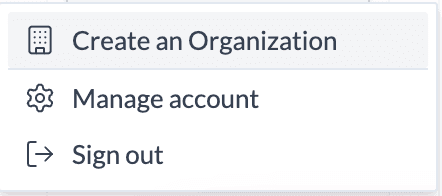
If you are already a member of an organization: go to workflowai.com/organization/select and select Create Organization from there.
How can I join an existing organization?
If the organization you want to join has Automatic Invitations enabled, and your email matches the criteria:
Sign up for WorkflowAI
Create your WorkflowAI account.
Check for automatic addition
You should be automatically added to the organization.
However if you do not see the organization appear when you log in: go to workflowai.com/organization/select and select the organization you want to join from the list.
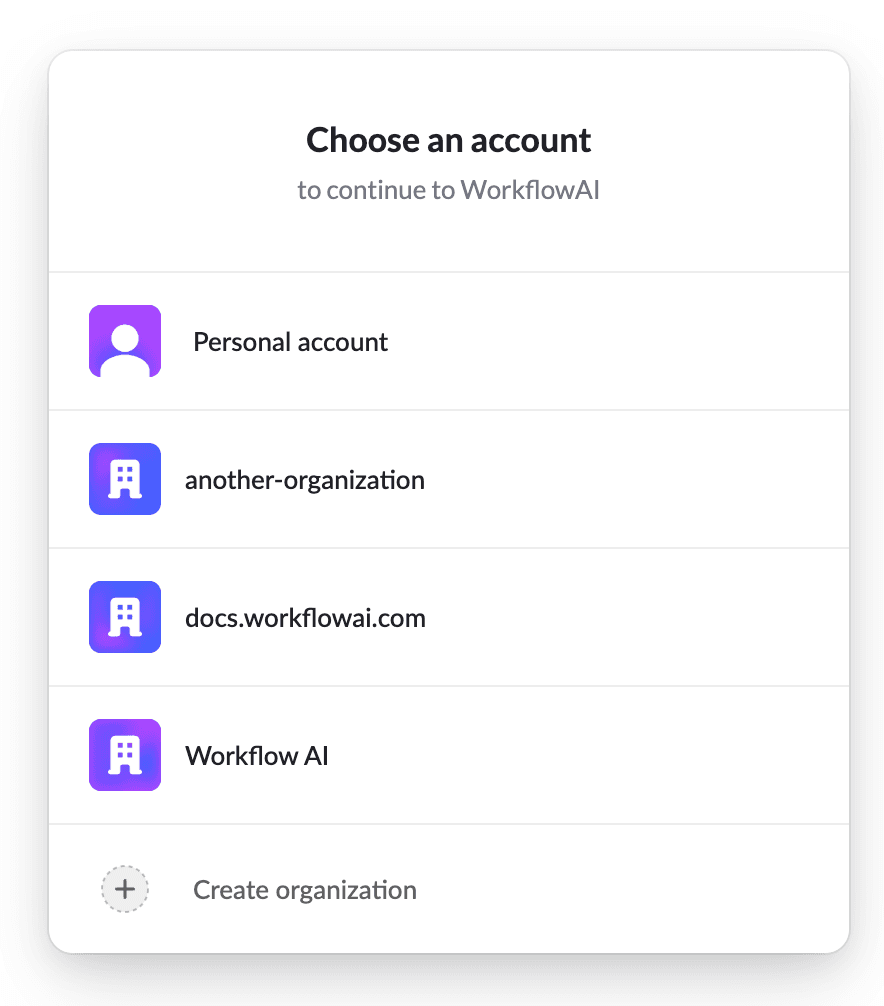
If the organization you want to join does not have Automatic Invitations enabled or your email does not match the criteria to be automatically admitted, you will need to ask an existing member of the organization to send you an invitation.
If you are the admin of an organization and want to learn how to enable Automatic Invitations, please see Organization Joining Settings.
Can I be part of more than one organization?
Yes!
How can I switch between organizations?
Log into WorkflowAI
Access your WorkflowAI account.
Open the user menu
Select your name at the bottom of the sidebar to open the user menu.
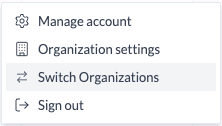
Organization Joining Settings
Verified Email Domains
Verified email domains can be used to streamline enrollment into an organization. If your organization has a verified email domain, users can join the organization automatiaclly or by suggestion (see Invitation Settings) by signing up with an email address that matches the verified domain.
Note: A verified domain cannot be a disposable domain or common email provider. For example, you cannot create a verified domain for @gmail.com.
Enabling Verified Email Domains
Log into WorkflowAI
Access your WorkflowAI account.
Open the user menu
Select your name at the bottom of the sidebar to open the user menu.
Access Organization Settings
Tap Organization Settings
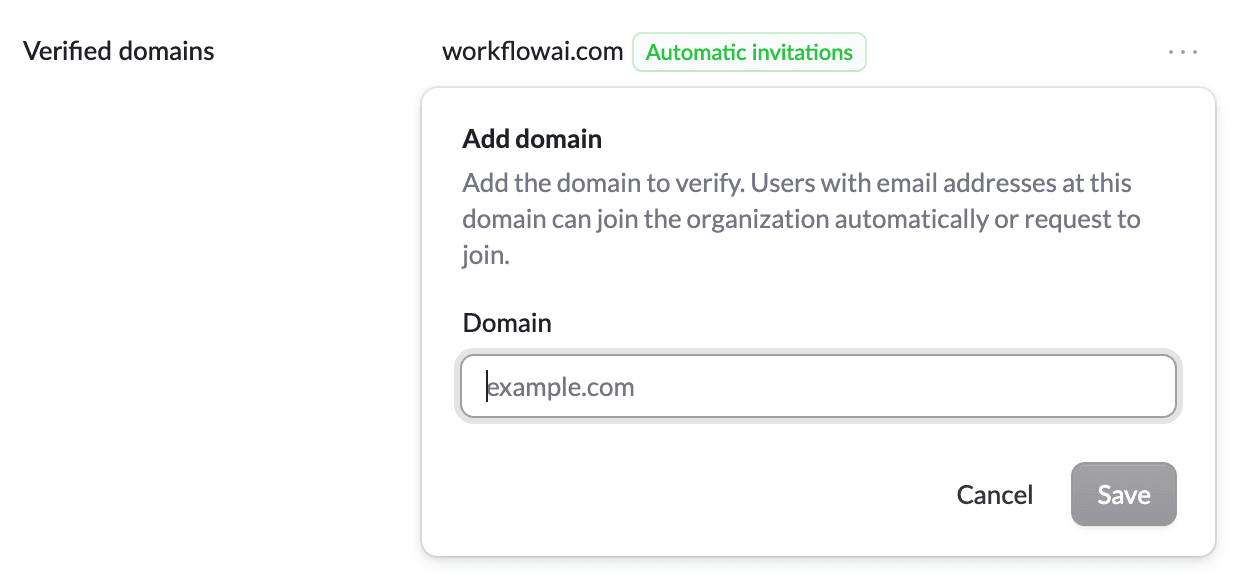
Add Domain
In the Verified Domains section select and select Add Domain and enter the domain you want to verify.
Invitation Settings
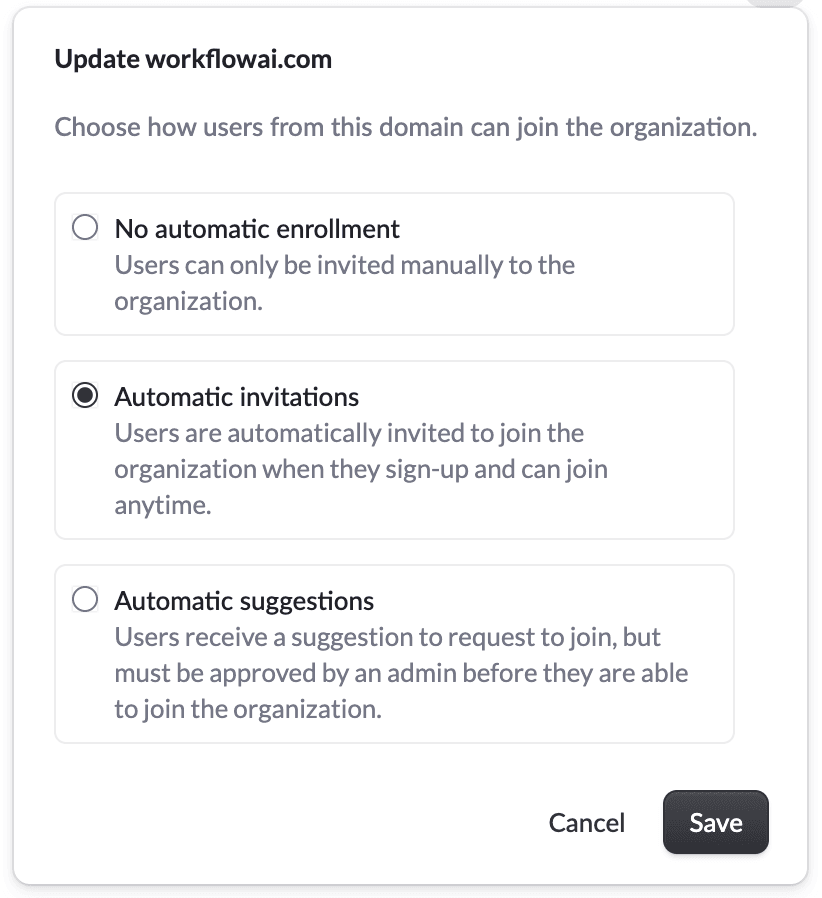
There are three different settings that determine how users can join an organization. In order to change the settings from the default of No automatic enrollment, you will need to first enabled Verified Domains.
- Automatic invitations: Users are automatically invited to join the organization when they sign-up and can join anytime.
- Automatic suggestions: Users receive a suggestion to request to join, but must be approved by an admin before they are able to join the organization.
- No automatic enrollment (default): Users can only be invited manually to the organization.
How is this guide?